
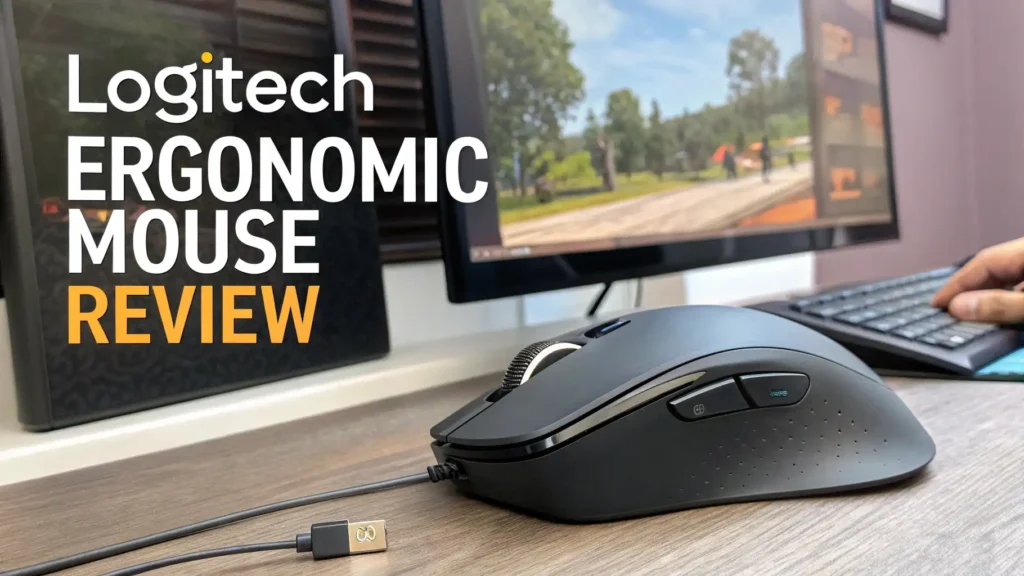
Logitech Ergonomic Mouse Review: The Ultimate Guide
Your wrist deserves better treatment. If you spend hours clicking and scrolling through work tasks or gaming sessions, you know the ache that creeps into your hand and forearm.
Standard mice force your wrist into unnatural positions that can lead to discomfort and even carpal tunnel syndrome.
Logitech has created a lineup of ergonomic mice that promise to change the way you work. These mice are designed with your comfort in mind.
Key Takeaways
- Better wrist positioning reduces strain and prevents repetitive stress injuries through vertical designs and sculpted shapes that promote natural hand posture.
- Multiple design options are available including vertical mice, trackball models, and contoured productivity mice to match different hand sizes and work styles.
- Advanced tracking technology with high DPI sensors ensures precise cursor control while requiring less hand movement across your desk surface.
- Quiet clicking mechanisms make these mice perfect for shared workspaces where noise levels matter for concentration and professionalism.
- Long battery life means you can work for weeks or months on a single charge without interruption or frequent battery replacements.
- Customizable buttons allow you to program shortcuts and workflows that boost productivity and reduce repetitive clicking motions.


Logitech MX Vertical Wireless Mouse
The Logitech MX Vertical stands as one of the most innovative ergonomic mice on the market today. This mouse features a unique 57-degree vertical angle that positions your hand in a natural handshake posture.
The design reduces muscle strain by 10 percent compared to traditional mice. Your wrist stays in a neutral position instead of twisting flat against your desk.
The 4000 DPI high precision sensor tracks accurately on almost any surface including glass. This advanced sensor means you need four times less hand movement to control your cursor.
The textured rubber surface provides excellent grip for extended work sessions. You get four customizable buttons plus a cursor speed switch for quick DPI adjustments.
The rechargeable battery lasts up to four months on a full charge. You can connect via Bluetooth or the included USB receiver.
The mouse works seamlessly with Windows, macOS, and Linux systems. Many users report significant relief from wrist pain after switching to this vertical design. The learning curve lasts about a week as your hand adjusts to the new position.
Logitech Lift Vertical Ergonomic Mouse

The Logitech Lift offers a more compact vertical mouse design that works perfectly for small to medium sized hands.
This mouse provides the same ergonomic benefits as the MX Vertical but in a smaller package. The vertical orientation keeps your wrist in a comfortable position throughout your workday. The softly textured surface feels pleasant against your palm.
This mouse features whisper quiet clicks that make it ideal for shared office spaces and video calls. You can work without disturbing colleagues or family members around you.
The SmartWheel provides smooth scrolling through long documents and web pages. Four programmable buttons let you customize shortcuts for your most common tasks.
The Lift connects through Bluetooth or the included Logi Bolt USB receiver. The battery lasts up to two years when using the USB receiver.
You can switch between three devices with the Easy Switch button. This feature proves valuable if you work across multiple computers or tablets. The mouse comes in three attractive colors including Graphite, Rose, and Off White.
Logitech MX Master 3S Wireless Mouse

The MX Master 3S represents the gold standard for productivity focused ergonomic mice. This mouse combines comfort with advanced features that boost your workflow efficiency. The sculpted shape fits naturally in your palm with support for your thumb and fingers. The design reduces strain during marathon work sessions.
The 8000 DPI optical sensor tracks with exceptional precision even on glass surfaces. You can adjust sensitivity settings to match your monitor resolution and personal preferences. The MagSpeed electromagnetic scroll wheel spins freely or stops precisely on each line. You can scroll through 1000 lines per second when reviewing lengthy documents.
Silent clicking technology makes each click 90 percent quieter than the previous MX Master generation. The mouse includes eight programmable buttons including a horizontal scroll wheel for your thumb.
You can customize button functions through the Logi Options software. The rechargeable battery lasts up to 70 days and charges fully in just three hours via USB-C.
Top 3 Alternatives for Logitech Ergonomic Mouse


Understanding Ergonomic Mouse Benefits
Ergonomic mice address the core problem of traditional mouse designs. Standard mice force your forearm to pronate or rotate inward. This position twists your wrist and puts pressure on the median nerve that runs through your carpal tunnel. Over time this pressure can cause numbness, tingling, and pain in your fingers and hand.
Vertical ergonomic mice position your hand in a handshake angle that keeps your wrist neutral. This position reduces pronation and takes pressure off your median nerve.
The vertical design also encourages you to move your mouse using your arm and shoulder rather than just your wrist. This change distributes movement across larger muscle groups.
Research shows that ergonomic positioning can reduce muscle strain and fatigue. Users often report less discomfort at the end of long work days.
Some people experience relief from existing wrist pain after switching to ergonomic mice. The benefits increase when you combine an ergonomic mouse with proper desk setup and regular breaks.
Logitech MX Ergo S Trackball Mouse
Trackball mice offer a completely different approach to ergonomic design. The MX Ergo S keeps your hand stationary while you control the cursor with your thumb. This design eliminates wrist and arm movement entirely. Your forearm rests comfortably on your desk throughout your work session.
The adjustable hinge lets you set the mouse at a 0 or 20 degree angle. The angled position further improves wrist posture and comfort. The precision mode button instantly reduces cursor speed for detailed work like photo editing or design tasks. Six programmable buttons provide quick access to your frequent commands.
The 80 percent quieter clicks make this trackball mouse suitable for any environment. The rechargeable battery lasts up to four months between charges.
You can connect via Bluetooth or the encrypted USB receiver. The MX Ergo S works great for people with limited desk space since the mouse stays in one place. The trackball requires some adaptation time but many users find it transforms their computing comfort.
Choosing the Right Size and Style
Hand size plays a crucial role in selecting your ideal ergonomic mouse. Large hands typically need full sized mice like the MX Vertical or MX Master 3S. These mice provide enough surface area for your entire palm to rest comfortably. The finger buttons sit within easy reach without stretching.
Small to medium hands benefit from compact designs like the Logitech Lift. A mouse that is too large forces your fingers to extend awkwardly. This position creates new strain points that defeat the ergonomic purpose. The Lift also comes in a left handed version for better accessibility.
Your work style affects which design suits you best. Vertical mice work well for general office tasks and web browsing. The natural handshake position feels intuitive once you adapt. Trackball mice excel when you have limited desk space or need to stay in one position. Contoured mice like the MX Master series provide the best balance of comfort and advanced features for power users.
Key Features to Consider
DPI sensitivity determines how far your cursor moves for each inch of mouse movement. Higher DPI means less physical movement required. Most Logitech ergonomic mice offer adjustable DPI settings. You can switch between sensitivity levels for different tasks. Detailed design work benefits from lower DPI while general navigation works better with higher settings.
Battery life varies significantly across models. The Lift offers up to two years on standard batteries. Rechargeable models like the MX Vertical last three to four months per charge. Consider how often you want to charge or replace batteries. USB-C charging has become standard on newer models for faster recharging.
Connectivity options include Bluetooth and USB receivers. Bluetooth allows direct connection to your computer without using a USB port. USB receivers often provide more stable connections and work with computers that lack Bluetooth. Many Logitech mice support both options. The Easy Switch feature lets you toggle between three paired devices instantly.
Software Customization Options
Logitech Options Plus software unlocks the full potential of these ergonomic mice. The software runs on Windows and macOS systems. You can customize button functions for each application you use. Set different shortcuts for your web browser, email client, and design software.
Application specific profiles automatically switch when you change programs. Your browser’s back button might become an undo command in your photo editor. You can adjust pointer speed, scrolling direction, and scroll wheel behavior. The software tracks battery levels and provides notifications when charging is needed.
Flow technology allows you to control multiple computers with one mouse. Move your cursor to the screen edge and it jumps to your other computer. You can even copy and paste content between machines. This feature proves invaluable if you work across a desktop and laptop simultaneously.
Price and Value Comparison
Logitech ergonomic mice range from budget friendly to premium pricing. The Logitech Lift typically costs around 70 dollars and offers excellent value for most users. You get essential ergonomic benefits and reliable performance without advanced features. The long battery life reduces ongoing costs.
The MX Vertical sits in the mid range at approximately 90 dollars. You pay more for the unique vertical design and rechargeable battery. The 4000 DPI sensor provides better precision than budget options. This mouse suits users who spend significant time at their computers.
Premium models like the MX Master 3S and MX Ergo S cost 100 dollars or more. These mice justify their price through advanced features like electromagnetic scroll wheels, multiple device connectivity, and superior build quality. Power users who depend on their mouse for professional work find the investment worthwhile. Consider how many hours you use a mouse daily when evaluating cost.
Common Issues and Solutions
Adaptation period challenges many new ergonomic mouse users. Your hand needs time to adjust to different positions and movements. Start by using your new mouse for short periods. Gradually increase usage over one to two weeks. Some initial discomfort is normal as your muscles adapt to healthier positions.
Cursor control accuracy may feel awkward initially with vertical mice. Practice helps develop the muscle memory for precise movements. Lower your DPI settings temporarily while learning. The reduced sensitivity makes control easier during adaptation. You can increase sensitivity once your accuracy improves.
Button reach can be challenging if you select a mouse that does not match your hand size. The forward and back buttons should fall naturally under your thumb without stretching. If buttons feel too far away, consider a smaller model. Logitech offers both regular and left handed versions to improve fit.
Maintaining Your Ergonomic Mouse
Regular cleaning keeps your mouse performing optimally. Wipe the surface weekly with a slightly damp microfiber cloth. Avoid harsh chemicals that can damage rubber coatings. Pay special attention to the textured grip areas where oils accumulate from your hand.
Clean the sensor monthly using compressed air or a cotton swab. Turn the mouse upside down to access the optical sensor window. Remove any dust or debris that interferes with tracking. For trackball mice, remove the ball periodically to clean the internal rollers. Logitech includes a small hole for ball removal on trackball models.
Monitor battery health on rechargeable models. Avoid letting the battery fully deplete repeatedly. Charge when the level reaches 20 to 30 percent. Store the mouse with a partial charge if you will not use it for extended periods. Replace standard batteries promptly when low to prevent leakage damage.
Should You Switch to an Ergonomic Mouse?
Warning signs indicate you could benefit from an ergonomic mouse. Wrist pain during or after computer use suggests improper positioning. Numbness or tingling in your fingers points to potential nerve compression. Fatigue in your forearm muscles shows you are working harder than necessary.
Prevention beats treatment when it comes to repetitive strain injuries. You do not need to wait for pain to develop. Switching to ergonomic equipment now protects your long term health. Carpal tunnel syndrome and tendonitis can take months to heal once established.
Your investment in an ergonomic mouse pays dividends through improved comfort and productivity. Less pain means better focus on your work. Reduced fatigue allows longer productive sessions. Many users wish they had switched sooner after experiencing the difference. Your hands perform millions of clicks and movements over your career. Give them the support they deserve.
Frequently Asked Questions
Do ergonomic mice really reduce wrist pain and prevent carpal tunnel syndrome?
Ergonomic mice can significantly reduce wrist strain by positioning your hand in more natural angles. Studies show vertical mice reduce pronation and take pressure off the median nerve. Many users report relief from existing wrist pain. However, ergonomic mice work best when combined with proper desk setup, regular breaks, and good posture. They help prevent issues rather than cure established conditions. If you have severe carpal tunnel symptoms, consult a medical professional for comprehensive treatment.
How long does it take to adjust to a vertical ergonomic mouse?
Most users adapt to vertical mice within one to two weeks of regular use. The first few days feel awkward as your hand learns new movement patterns. Accuracy improves gradually as muscle memory develops. Start by using the ergonomic mouse for short sessions and alternate with your old mouse if needed. By the second week, the vertical position typically feels natural. Some users adapt faster while others need three weeks. The improved comfort makes the learning period worthwhile.
Can I use a Logitech ergonomic mouse for gaming?
Logitech ergonomic mice are designed primarily for productivity and office work rather than gaming. The vertical mice and trackballs have higher latency and lower polling rates than dedicated gaming mice. However, casual gamers can use these mice for strategy games and slower paced titles. The MX Master 3S works reasonably well for non competitive gaming. Serious gamers should stick with gaming specific mice that offer high DPI, fast response times, and precise tracking for competitive play.
What is the difference between the MX Vertical and the Logitech Lift?
The MX Vertical targets users with medium to large hands while the Lift suits small to medium hands. The MX Vertical offers higher 4000 DPI sensitivity and a rechargeable battery lasting four months. The Lift uses standard batteries lasting up to two years and features quieter clicks. The MX Vertical costs about 20 dollars more. Both provide similar vertical ergonomic benefits. Choose based on your hand size and preference for rechargeable versus replaceable batteries.
Are trackball mice better than vertical mice for ergonomics?
Trackball mice and vertical mice offer different ergonomic approaches. Trackballs eliminate arm and wrist movement entirely by keeping your hand stationary. This design helps people with limited desk space or shoulder issues. Vertical mice reduce wrist pronation while allowing natural arm movements. Neither design is universally better. Trackballs require more adaptation time and use your thumb intensively. Try both styles if possible to determine which feels more comfortable for your specific needs and work patterns.
How do I know which hand size category I fall into for choosing a mouse?
Measure from your wrist to the tip of your middle finger to determine hand size. Small hands measure less than 7 inches or 178 millimeters. Medium hands range from 7 to 8 inches or 178 to 203 millimeters. Large hands exceed 8 inches or 203 millimeters. You can also evaluate by trying mice in stores. Your fingers should reach buttons comfortably without stretching. Your palm should rest fully on the mouse body. If the mouse feels too large or your fingers extend past the buttons, choose a smaller size.