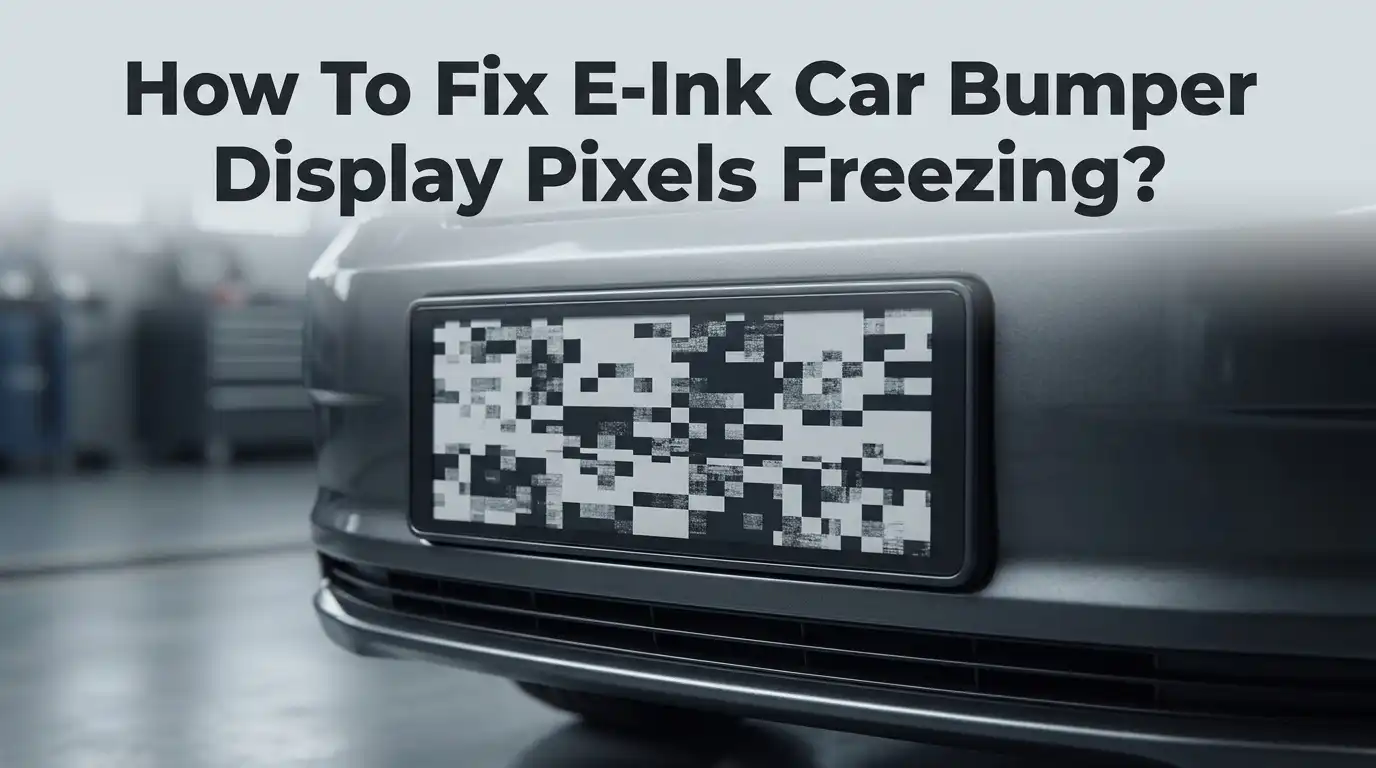
How To Fix E-Ink Car Bumper Display Pixels Freezing?
Picture this. You just installed a sleek e-ink display on your car bumper. It looked amazing for the first week.
Then suddenly, the pixels froze. Your custom message or design got stuck on screen.
Don’t panic. This is a common issue with e-ink technology. It happens to many car display owners.
E-ink screens work differently than regular displays. They use tiny particles that shift to create images. Sometimes these particles stop responding properly.
Cold weather often causes this freezing problem. Battery issues can also trigger frozen pixels. Sometimes it’s simply a software glitch.
In a Nutshell
- Charge the device first. Battery depletion causes most freezing issues. Plug it in and wait before trying anything else.
- Try a hard reset. Hold the power button for 20 to 40 seconds. This clears temporary glitches without harming your data.
- Warm it up if cold. Freezing temperatures can pause pixel updates. Bring the display to room temperature and let it sit for about 24 hours.
- Use the reset button. If the screen still won’t refresh, a manual reset button press often solves the problem.
- Connect it to a computer. A working display should show up as a drive on your PC. This confirms the hardware is still functional.
- Check for physical damage. Cracks or pressure on the front light panel can create permanent dead pixels. Handle your display gently to avoid this.
Understanding E-Ink Display Technology in Car Bumpers
E-ink technology powers your car bumper display using electrophoretic display technology. This is the same technology found in e-readers and digital tablets. The display works by moving charged particles within a thin layer to create images and text.
How E-ink displays function is quite different from standard LCD or LED screens. Instead of using backlighting, e-ink displays reflect ambient light. This makes them visible in sunlight and reduces power consumption significantly.
The display contains millions of tiny capsules filled with charged particles. These particles are either black or white. When you apply an electrical charge, particles move to show your desired image.
Pixel freezing occurs when the display fails to refresh properly. This happens because the electrical charge doesn’t reach certain pixels. The frozen pixels then stay in their last position indefinitely.
Battery depletion is the most common cause of freezing. When power runs low, the display cannot generate enough electrical charge to move particles. Cold temperatures also slow down the refresh process. In extreme cold, the display may stop responding temporarily.
Understanding this technology helps you troubleshoot problems effectively. E-ink displays need consistent power to function properly. They also perform better in moderate temperatures between 50 and 95 degrees Fahrenheit.
The good news is that frozen pixels rarely indicate permanent hardware damage. Most freezing issues stem from power problems or temperature fluctuations. Once you restore power and warmth, your display usually recovers completely.
Physical damage to the front panel can cause dead pixels that don’t recover. Avoid dropping your bumper display or exposing it to sharp impacts. Proper care prevents many freezing problems before they start.
What Causes Pixel Freezing on E-Ink Bumper Displays
Pixel freezing on e-ink bumper displays happens for several specific reasons. Understanding these causes helps you fix the problem faster.
Battery depletion is the most common culprit. When your display runs low on power, it cannot refresh the pixels properly. The screen gets stuck showing the last image it displayed. This happens because e-ink technology requires electrical power to change pixel positions. Without sufficient charge, the display simply cannot update.
Cold temperatures slow down pixel movement significantly. E-ink displays rely on charged particles moving within tiny capsules. Cold weather thickens these particles and slows their movement. In extreme cold, the refresh process may stop entirely. Fortunately, warming the device usually restores normal function.
Display refresh failures also cause freezing. Your bumper display communicates with a control system that tells pixels when to change. If this communication breaks down, pixels remain stuck in their current state. This can happen after power cycles or software glitches.
Physical damage to the front panel creates dead pixels. Impact damage, scratches, or pressure on the display surface can break the pixel capsules. These damaged areas cannot refresh and appear frozen permanently.
Poor electrical connections between the display and power source lead to freezing too. Loose connections prevent consistent power delivery. The display may work intermittently or freeze randomly.
Software errors occasionally trigger freezing. Corrupted display drivers or outdated firmware can prevent proper pixel updates. The display appears stuck even though the hardware works fine.
Understanding these causes helps you troubleshoot systematically. Start by checking battery level and temperature. Then move to harder resets and physical inspections. Most freezing issues resolve quickly once you identify the root cause.
Step-by-Step Guide to Performing a Hard Reset
A hard reset clears temporary glitches that freeze your e-ink bumper display. This process forces the device to restart completely, which often fixes pixel problems without erasing your data.
Start by locating the power button on your bumper display unit. Press and hold it continuously for 20 to 40 seconds. You may see the screen flicker or go blank during this time. This is normal and means the reset is working.
Keep holding even if nothing appears to happen. The device needs this full duration to power down completely and clear its memory cache. Releasing too early stops the process and wastes your effort.
After 40 seconds, release the power button. Wait about 10 seconds before pressing it again to turn the device back on. The display should restart fresh.
Watch for the startup sequence when the device powers up. You’ll typically see a boot animation or loading screen. Let this complete without interruption. The pixels should respond normally once startup finishes.
If the frozen pixels persist after the hard reset, try charging your device immediately. Many freezing issues stem from low battery power. Connect it to the charger for at least 2 to 3 hours before testing again.
Test the display by triggering a refresh. Tap the screen gently or use any buttons that normally update the display. You should see pixels respond smoothly now.
If your bumper display still shows frozen pixels after these steps, the issue may involve cold temperatures or physical damage. Move to the next troubleshooting method in your repair sequence.
Charging and Power Cycle Best Practices
Charging your e-ink bumper display fully is the first practical step you should take. Battery depletion causes frozen pixels more often than any other factor. Connect your device to a power source and let it charge completely before testing anything else.
Allow at least two to four hours for a full charge cycle. Some displays need longer depending on battery capacity. Check your manual for the exact charging time required for your specific model.
While charging, avoid using the display. Let the device sit undisturbed so power reaches the battery completely. Don’t interrupt the charging process by pressing buttons or triggering refreshes.
After charging finishes, perform a power cycle. Turn off your bumper display completely. Wait thirty seconds before turning it back on. This simple pause helps reset internal systems and often unfreezes pixels immediately.
If your display still shows frozen pixels after charging and restarting, temperature may be the issue. Cold environments slow down pixel movement significantly. Move your vehicle to a warm garage or indoor space. Let the display sit at room temperature for approximately twenty-four hours.
Extreme cold can halt pixel updates temporarily, but warmth usually restores function. Never force the display to work in freezing conditions.
Test the display again after it warms up. Press buttons or trigger screen updates to see if pixels respond normally now. Most frozen pixel problems resolve after proper charging and a full power cycle combined with appropriate temperature conditions.
If frozen pixels persist after these steps, the issue may involve physical damage or a deeper hardware problem requiring professional inspection.
Dealing With Cold Weather and Temperature-Related Freezing
Cold weather is one of the most common reasons your e-ink bumper display pixels freeze. The electrophoretic technology inside these displays moves charged particles slowly when temperatures drop. Understanding how temperature affects your display helps you fix the problem quickly.
Cold temperatures slow pixel movement significantly. When you park your car in freezing conditions, the display may stop refreshing entirely. This doesn’t mean your device is broken. The pixels simply move too slowly to create visible changes on the screen. Once you warm the display, the pixels usually start moving again.
Extreme cold can temporarily halt all pixel updates. Your display might look completely frozen for hours in sub zero weather. This is normal behavior for e-ink technology. The good news is that warmth restores function in most cases.
To fix cold related freezing, bring your car indoors or park in a warmer location. Allow your bumper display to sit at room temperature for approximately 24 hours. This gives the internal components time to warm up fully. Check if the pixels respond after this warming period.
Never force the display to work in extreme cold. Attempting multiple refreshes or power cycles while the device is frozen may damage internal components. Patience is your best tool here.
If your display still shows frozen pixels after warming, the issue likely involves something else. Battery depletion, hardware damage, or software errors might be responsible instead. Test your display again once it reaches normal room temperature. Most cold related freezing resolves completely without any additional action needed.
Common Mistakes That Delay a Proper Fix
Many people make critical mistakes when trying to fix frozen e-ink bumper display pixels. These errors often make the problem worse or delay the actual solution.
The biggest mistake is assuming hardware failure immediately. Most users think the display is broken and needs replacement when it actually just needs charging or a proper reset. Battery depletion causes frozen pixels far more often than actual hardware damage. Always charge your device fully before concluding anything is permanently broken.
Another common error is skipping the hard reset entirely. Some owners try multiple soft restarts or quick power cycles instead. These gentle attempts rarely work because they don’t fully clear the display’s memory. You need to hold the power button for the full 20 to 40 seconds to force a complete system restart.
Ignoring temperature is another frequent mistake. People often expose their bumper displays to extreme cold without understanding how this affects performance. Cold temperatures slow pixel movement dramatically. Attempting repeated refreshes or power cycles while the device is freezing only frustrates the system further.
Many users also fail to wait long enough after charging. They plug in the device, wait five minutes, and assume it’s ready. E-ink displays need adequate time to stabilize after a full charge cycle completes.
Forcing the display to work under stress is equally problematic. Pressing buttons repeatedly or triggering constant refreshes while pixels are frozen can cause actual damage to the electrophoretic system inside.
The solution is simple: charge first, reset properly, and allow time for temperature normalization. These basic steps resolve most frozen pixel issues without any hardware replacement needed.
Troubleshooting Persistent Frozen Pixels
Frozen pixels on your e-ink car bumper display happen when the screen stops refreshing properly. This issue stems from three main causes: battery depletion, temperature stress, or display refresh failures. Understanding which cause applies to your situation helps you fix the problem faster.
Start by checking your battery level immediately. A dead or critically low battery is the most common culprit behind frozen pixels. Connect your display to a charger right away. Let it charge for two to four hours without using the device. This simple step resolves the issue in many cases.
Next, perform a hard reset once charging completes. Hold down the power button for 20 to 40 seconds until the display shuts off completely. This forces the system to clear any stuck refresh commands. Release the button and power the device back on normally. The pixels should respond and update again.
If frozen pixels persist after charging and resetting, temperature likely plays a role. Cold temperatures dramatically slow pixel movement in e-ink displays. Extreme cold can halt updates entirely. Move your car to a warmer location indoors if possible. Allow the display to sit at room temperature for approximately 24 hours. Warmth restores normal pixel function in most cold related cases.
Monitor your display carefully during this warming period. Test it periodically by pressing buttons or triggering screen updates. You should notice gradual improvement as the temperature stabilizes.
If pixels remain frozen after all these steps, physical damage or internal hardware failure may be responsible. Avoid forcing the display to work under stress. Contact support if the problem continues beyond this point.
Preventive Maintenance Tips for Long-Term Display Health
Keeping your e-ink car bumper display healthy requires consistent attention and smart habits. Regular maintenance prevents most pixel freezing problems before they start.
First, check your battery charge weekly. A depleted battery is the leading cause of frozen pixels. Keep your display charged to at least 50% capacity during normal use. This simple step stops many refresh failures from happening.
Second, protect your display from physical damage. The front light panel is delicate. Avoid hitting it with objects or applying pressure during cleaning. Even small cracks can create dead pixels that won’t recover.
Third, store your car in moderate temperatures whenever possible. Extreme cold and heat both stress the electrophoretic display technology. If you park outdoors during winter, try to move your vehicle into a garage periodically. This allows the display to normalize and refresh properly.
Fourth, perform gentle power cycles monthly. Turn off your display completely for 30 seconds, then power it back on. This keeps the refresh system active and prevents pixel stagnation.
Fifth, clean the display surface carefully using a soft, dry cloth. Moisture and debris can interfere with pixel movement. Never spray liquid directly on the screen.
Sixth, monitor your display during seasonal changes. Temperature shifts stress the system most. Watch for any sluggish refresh rates in fall and winter months.
Seventh, update your display firmware when available. Software updates often improve refresh reliability and fix known freezing issues.
Consistent maintenance takes minutes but saves hours of troubleshooting later. These preventive steps keep your bumper display functioning smoothly for years.
Final Thoughts
Fixing frozen pixels on your e-ink car bumper display does not need to feel confusing. Most problems come down to two simple causes. Either the battery ran low or the temperature dropped too much.
Charging your device first solves the majority of frozen screen issues. Give it a full charge before assuming anything else is wrong.
A hard reset often works like magic. Hold the power button for the full 20 to 40 seconds. Do not rush this step.
Temperature plays a bigger role than most people expect. Cold weather slows down the electrophoretic technology inside your display. Warmth brings it back to life.
If you live somewhere with harsh winters, plan ahead. Bring your car into a garage when possible. This small habit protects your display from unnecessary freezing.
Patience matters just as much as technique. Rushing through steps or skipping the warming period often leads to more frustration.
Remember that most e-ink displays are tougher than they look. They rarely fail completely from cold or low battery alone.
Physical damage is a different story. Cracks or pressure on the front light panel can cause permanent dead pixels. No reset fixes that.
Before you worry about hardware failure, always rule out the simple stuff. Charge it. Reset it. Warm it up. These three steps solve most frozen pixel problems.
Your bumper display works hard in tough conditions every day. It faces heat, cold, rain, and constant vibration. A little care goes a long way toward keeping it reliable.
Stay calm the next time your screen freezes. Simple solutions usually work best. Trust the process, follow these steps, and your display should return to normal function soon.
Frequently Asked Questions
Why does my e-ink display freeze in cold weather?
E-ink technology slows down when temperatures drop. Cold makes the electrophoretic fluid inside move more slowly, which delays screen refreshes. Your display isn’t broken. It just needs time to warm up.
Move your car to a warmer location if possible. Allow the display to sit at room temperature for about 24 hours. The pixels should start responding again once the device warms up.
Can a frozen screen mean my battery is dead?
Yes, battery depletion causes frozen pixels very often. E-ink displays need power to refresh, even though they use less energy than regular screens. A completely drained battery stops all updates instantly.
Charge your device fully before trying anything else. This single step fixes most frozen pixel problems. You’ll be surprised how often the answer is just low power.
What’s the difference between a frozen pixel and a dead pixel?
A frozen pixel stops refreshing but may come back to life. A dead pixel is physically damaged and stays black or white permanently. Frozen pixels are temporary. Dead pixels are permanent damage.
Try charging and resetting first. If the pixel responds after these steps, it was frozen, not dead. Dead pixels require professional display replacement.
Should I try a hard reset if my screen freezes?
Yes, always attempt a hard reset after charging. Hold your power button for 20 to 40 seconds without releasing. This forces your display to restart completely.
A hard reset clears temporary glitches that prevent normal refreshing. It works like restarting a computer. Most frozen screens respond well to this simple action.
Can I connect my display to a computer if it freezes?
Usually yes, if the device still has power. A frozen screen doesn’t always mean the internal systems are broken. Your display should appear as a storage drive on your computer.
Check your connection cables first. If the device connects normally, the freeze is likely software related, not a hardware failure.

Hello, I’m Juniper Harkness, a tech enthusiast and the creator of TechReviewz.blog, where I dive deep into the latest technology products available on Amazon.